

- Update regularly: Install recommended updates for your operating system and apps to ensure the latest security patches are applied.
- Use strong, unique passwords or passphrases: Avoid reusing passwords across services like email, banking, and your mobile wallet.
- Enable biometric authentication: Use fingerprint or facial recognition for added security.
- Set automatic screen timeouts: This helps prevent unauthorized access when your device is idle.
- Use multifactor authentication (MFA): Add an extra layer of protection to your apps and accounts.
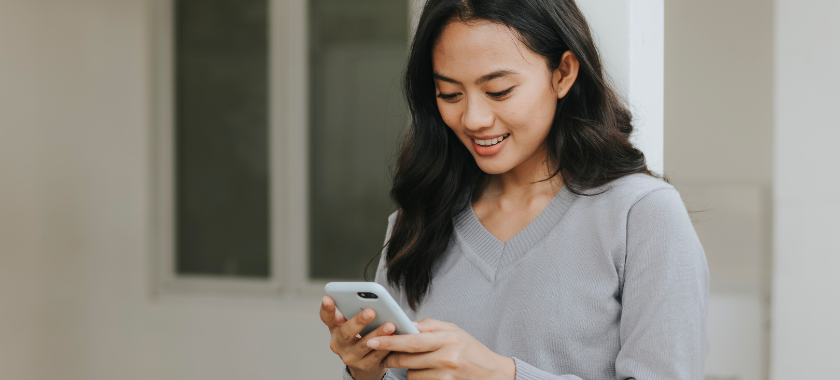
Your Kawartha debit cards are now available on your phone
Enjoy the convenience and security of using your Kawartha debit card or Debit Mastercard® with Apple Pay, Samsung Wallet, or Google Pay™. Make purchases in store, online, or through your app with just a tap on your phone. Mobile wallet is also available for Kawartha credit cards.
Convenience
Shopping just got simpler! Just tap and go, no more fumbling for your wallet.
Security
Advanced technology means card details are never shared with merchants.

Pay faster
Pay with your phone virtually anywhere contactless payments are accepted.

Flexibility
Add your Kawartha debit and credit cards for seamless spending control.
Adding mobile wallet
Apple Pay
Samsung Wallet
Google Pay
Mobile wallet security tips
Keep your device secure
Protect your credentials
- Keep credentials private: Never share your PINs, passwords, or other access information.
- Require authentication for every payment: Set your mobile wallet to prompt for a password or biometric ID before completing transactions.
- Use available password protection features: Enable options provided by your mobile wallet app or provider.
Monitor and respond
- Regularly scan your device: Use reputable security software to check for malware.
- Enable alerts: Activate notifications from your financial institution via online banking or your mobile app.
- Watch for phishing attempts: Be cautious with suspicious links, texts, emails, pop-ups, or QR codes.
Use secure networks
- Avoid public Wi-fi: Open networks can be vulnerable to attacks. Use a VPN if you must connect in public.
- Secure your telecom account:
- Enable SIM swap or port-out protection with your carrier.
- Use a secure PIN or passcode for your telecom account.
Prepare for loss or theft
- Enable remote locking/wiping: Set up tools that allow you to lock or erase your device if it’s lost or stolen.
- Notify your bank immediately: If your device is lost or stolen, contact your financial institution to lock or remove your mobile wallet cards.
Additional tips
- Only install apps from trusted sources (Google Play Store, Apple App Store): Apps downloaded from untrusted sources often contain malware that once installed can steal your information, spy on your communications and cause harm to your phone’s contents. Make sure to use the official app store for your brand of device when downloading new apps.
- Change your passwords regularly: Update them often, especially after any suspicious activity.
- Wipe personal data before device disposal: Remove mobile wallets and all personal information before selling, recycling, or discarding your device.
Google Pay is a trademark of Google LLC.
For terms and conditions, please view our Mobile Wallet Terms of Use.
For terms and conditions, please view our Mobile Wallet Terms of Use.





Effective January 1, 2026, Kawartha Credit Union Limited will amalgamate with Libro Credit Union Limited.
On this date, Kawartha Credit Union Limited will begin operating as Kawartha Financial Services, a division of Libro Credit Union Limited.
On this date, Kawartha Credit Union Limited will begin operating as Kawartha Financial Services, a division of Libro Credit Union Limited.